
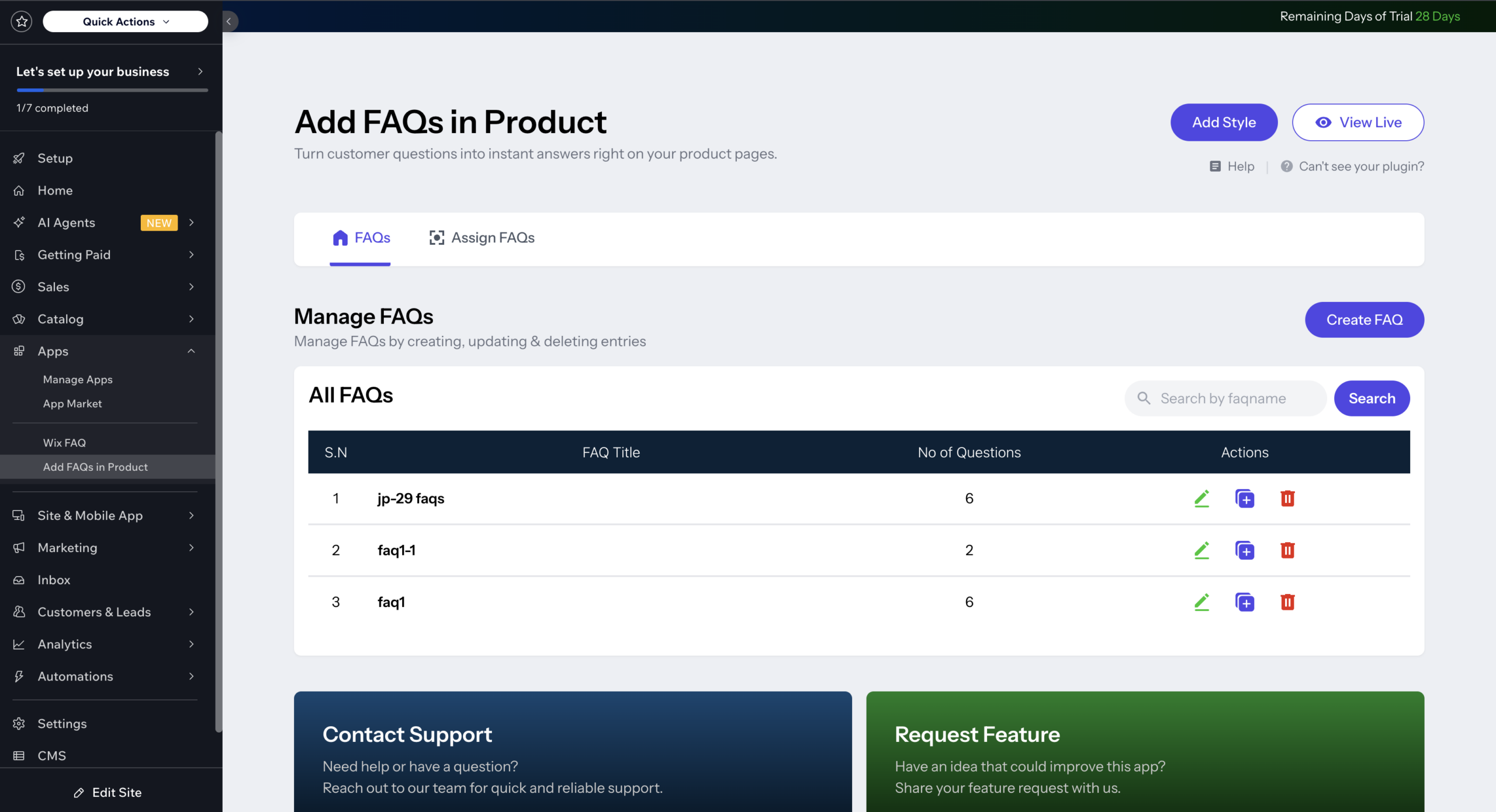
If you’ve ever had a customer abandon their cart because they couldn’t find an answer to a simple question, you already know how important it is to have the right information on your product page. Add FAQs in Product by Codeyard makes it easy to display frequently asked questions exactly where your customers need them, right on the product page, at the moment they’re deciding to buy.
In this guide, we’ll walk you through the complete setup process, from creating your first FAQ to seeing it live on your store.
Getting Started — Accessing the Dashboard
There are two ways to get to the app’s dashboard.
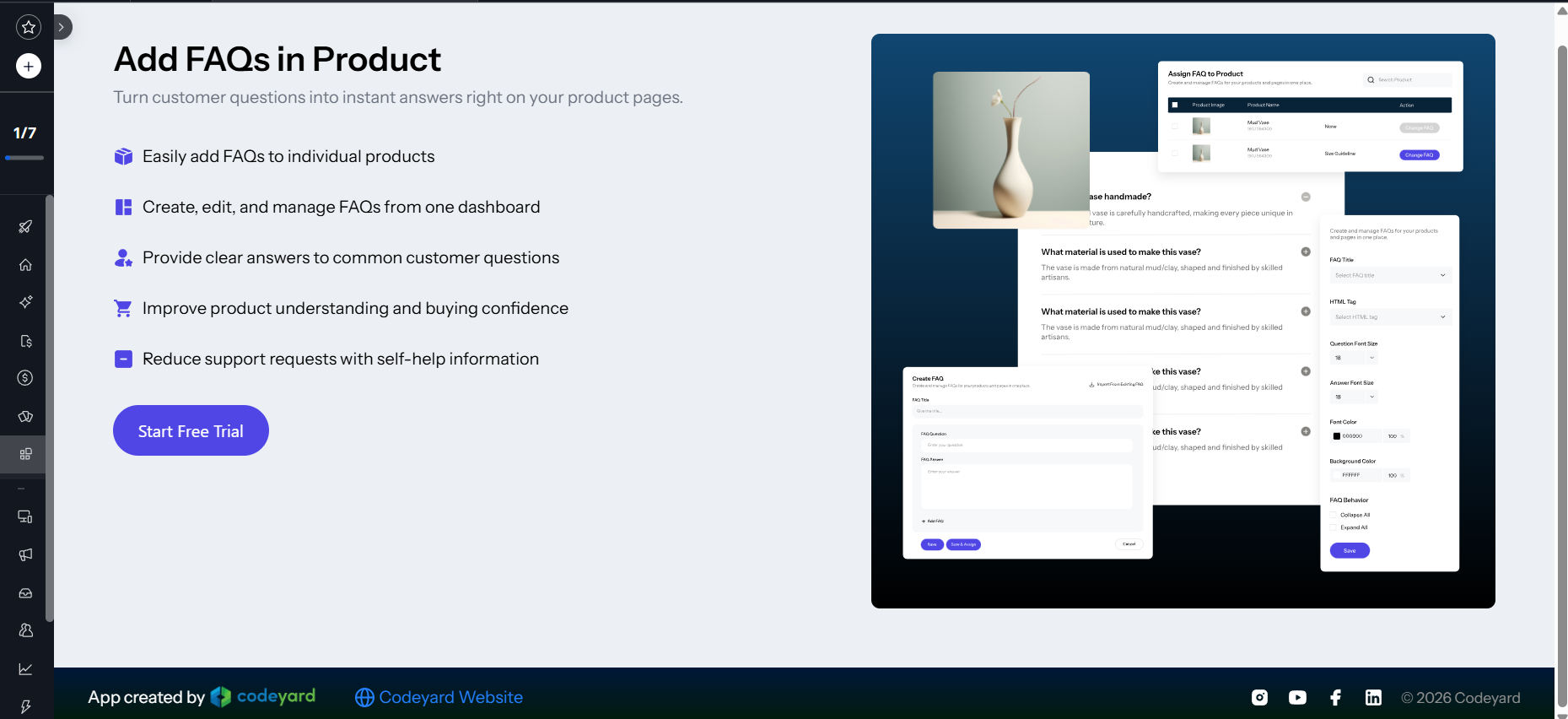
The first is directly from your product page in the Editor. Click on the plugin, hit the Settings button, and then click Navigate to Dashboard from the panel that opens.
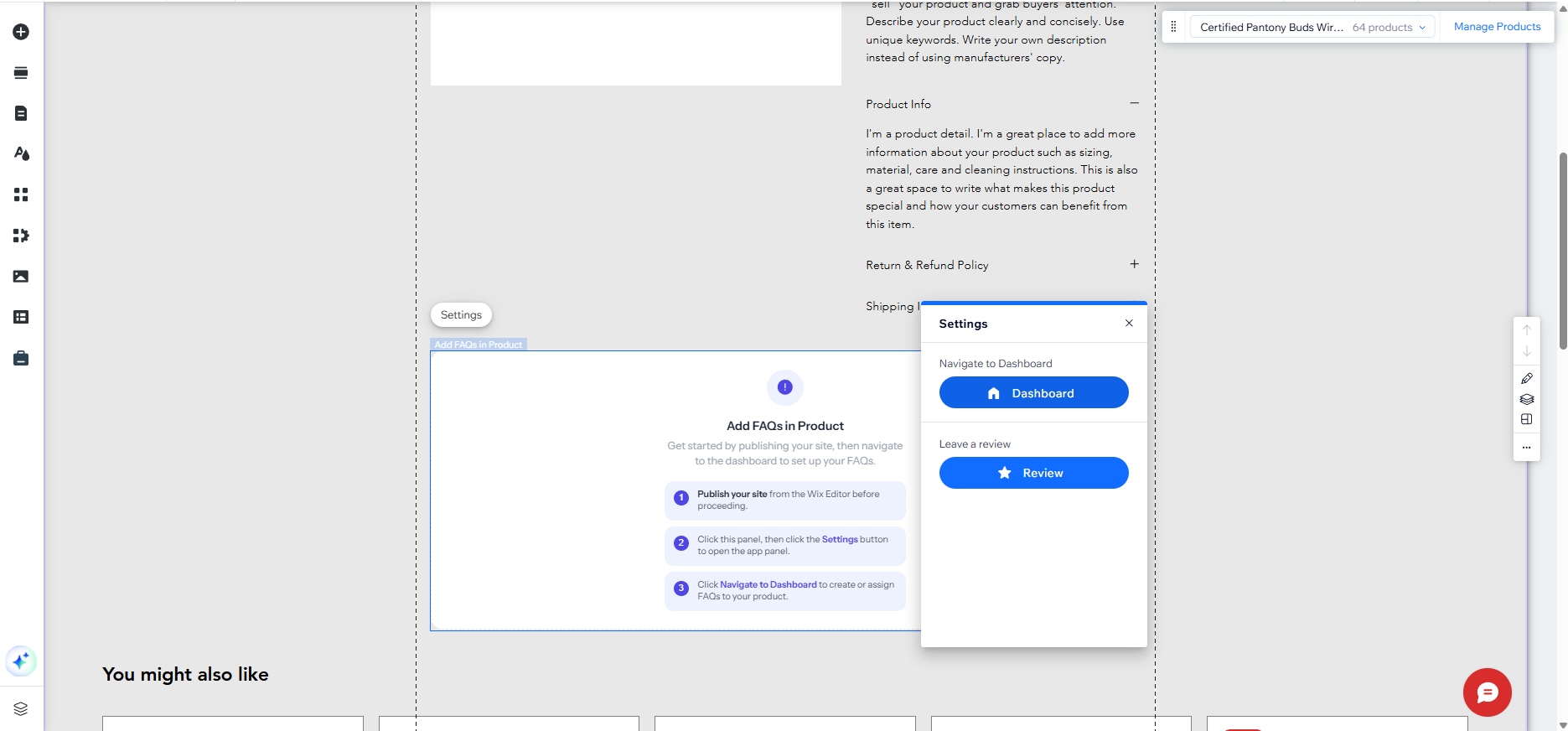
The second is from your Wix site dashboard. Head to your Home Dashboard and find the app in the left-hand menu.
Both routes take you to the same place, so use whichever feels more natural to you.
Step 1 — Create Your First FAQ
Once you’re on the dashboard, click the “Create your first FAQ” button to get started.
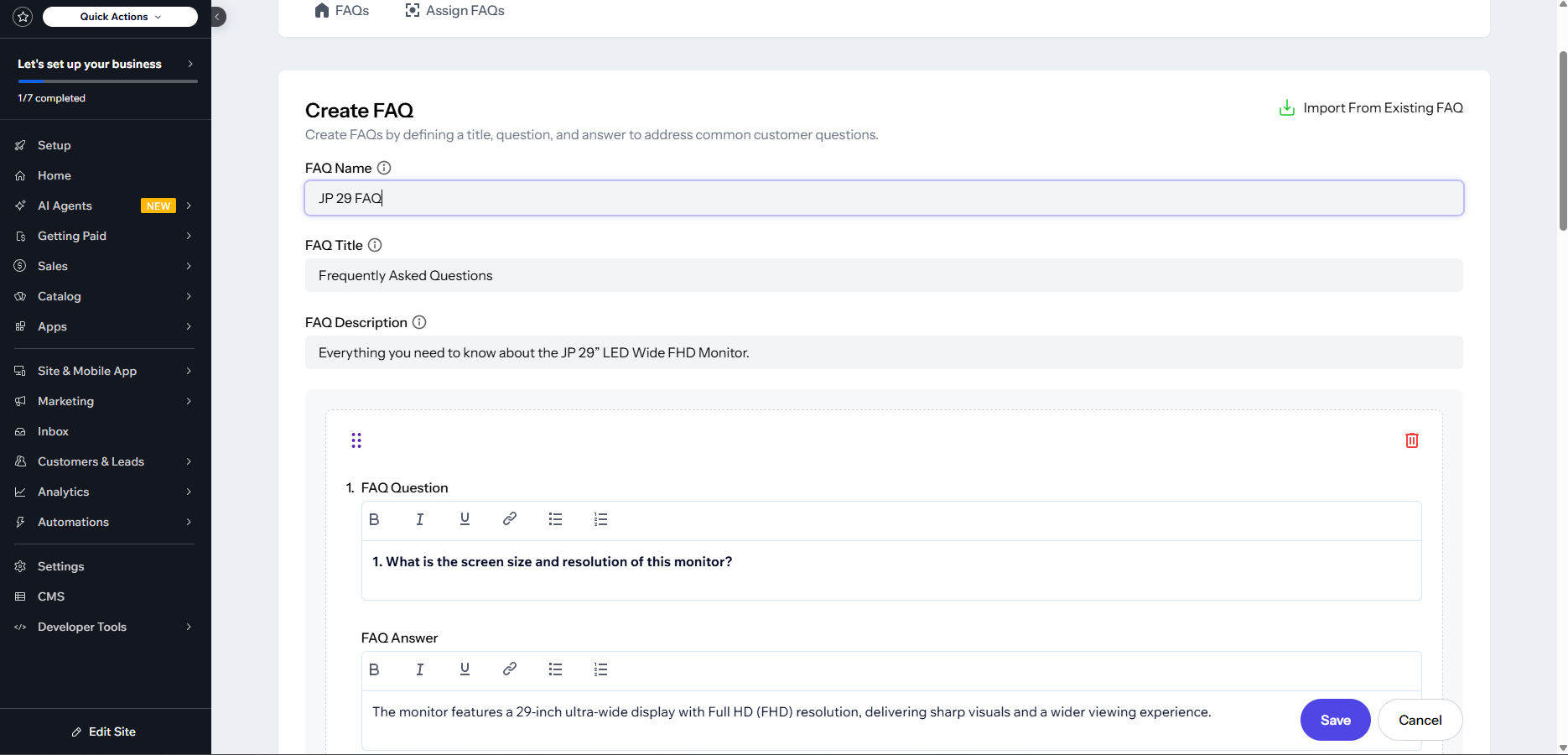
You’ll land on the Create FAQ page. The first thing to fill in is the FAQ Name, this is just for your internal reference, so name it something that helps you identify the set later.
Next, you can optionally add a Title and a Description that will appear on your product page. These are completely optional, so skip them if you’d rather keep things minimal.
Now add your first question and answer. Type your question into the FAQ Question field and your answer into the FAQ Answer field below it. The toolbar above the answer field gives you formatting options: bold, italic, underline, links, and lists. So you can present your answers clearly.
Need to add more questions? Click + Add More FAQ to keep adding pairs. If you’ve already set up FAQs before, you can also use the Import From Existing FAQ button in the top right corner to save yourself some time.
When you’re done, save your FAQ and move on.
Step 2 — Assign the FAQ to a Product
With your FAQ created, it’s time to connect it to a product.
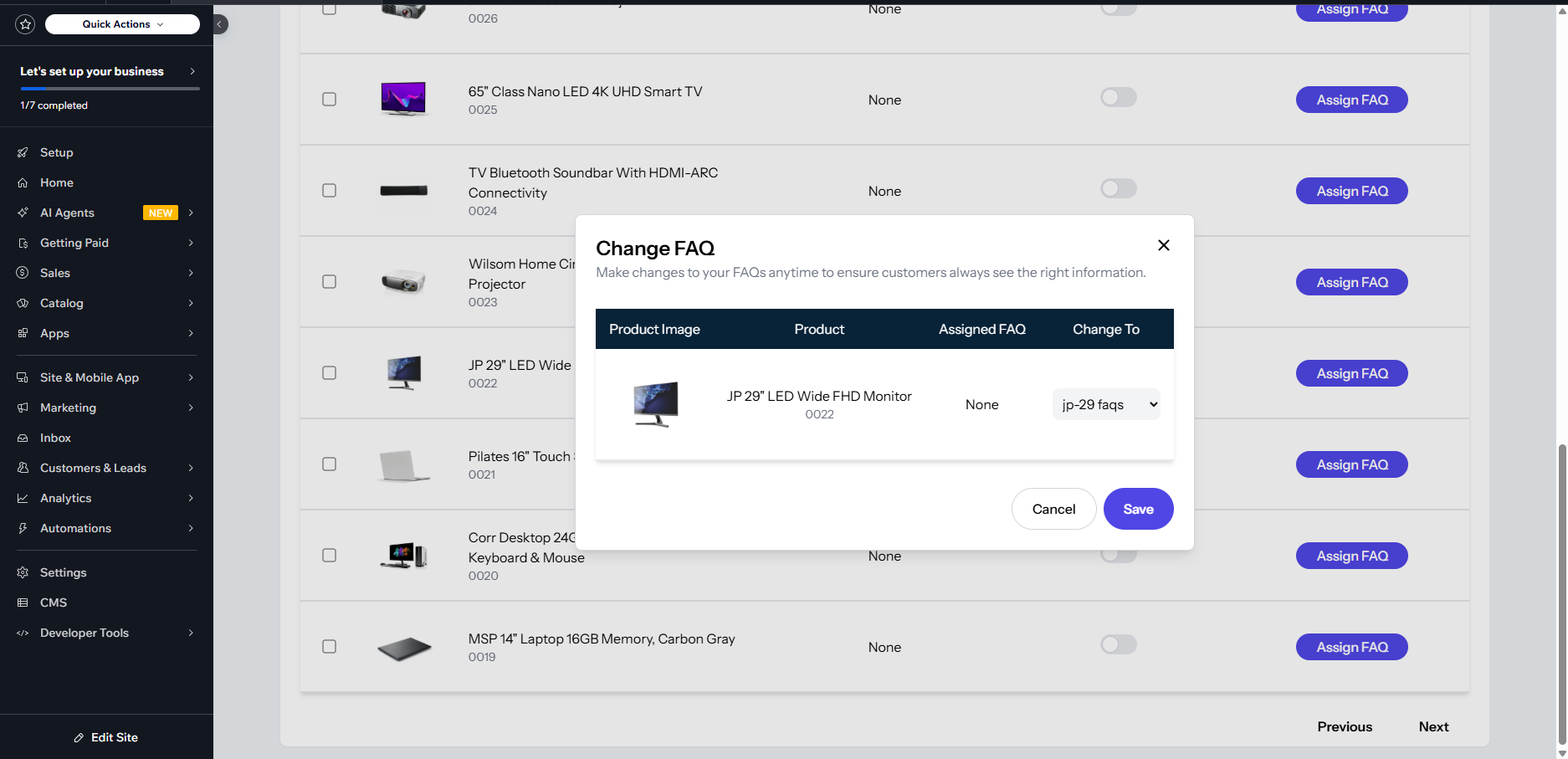
Click the Assign FAQs button. Use the search bar to find the product you want to attach the FAQ to, then click Assign FAQ and select the FAQ you want displayed on that product page.
One helpful feature here: you can assign the same FAQ to multiple products at once, which is a big time-saver if several of your products share the same common questions.
Step 3 — Style Your FAQ Section
Now let’s make your FAQ section feel like it belongs on your store.
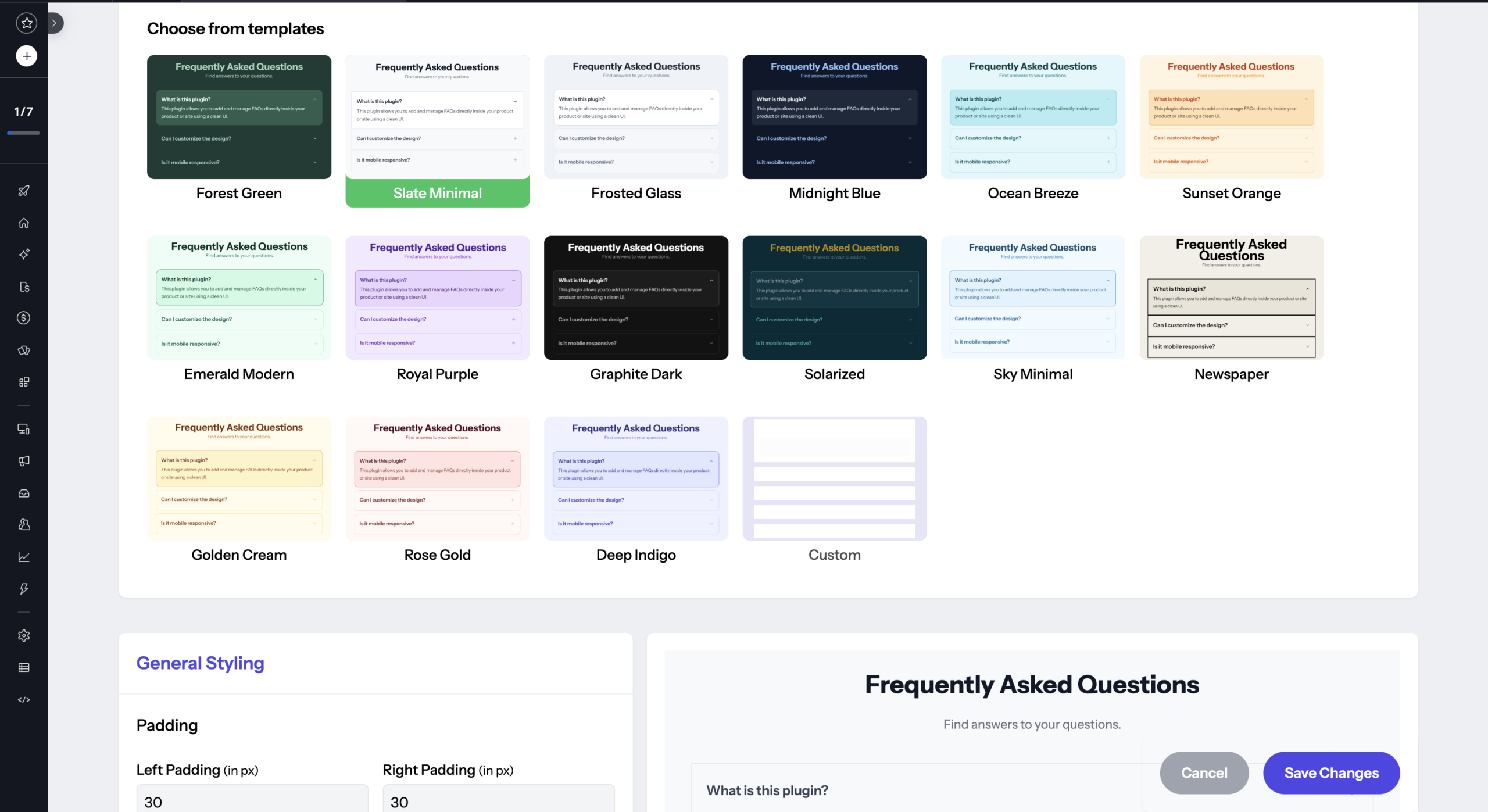
Click the Style FAQ button to open the styling options. From here, you can either choose from a pre-made template or customize the appearance yourself. Adjusting colors, fonts, layout and more to match your store’s design.
Once you’re happy with how it looks, save your changes.
Step 4 — Enable the FAQ on Your Product Page
Your FAQ is created, assigned, and styled. Now it’s time to make it visible.
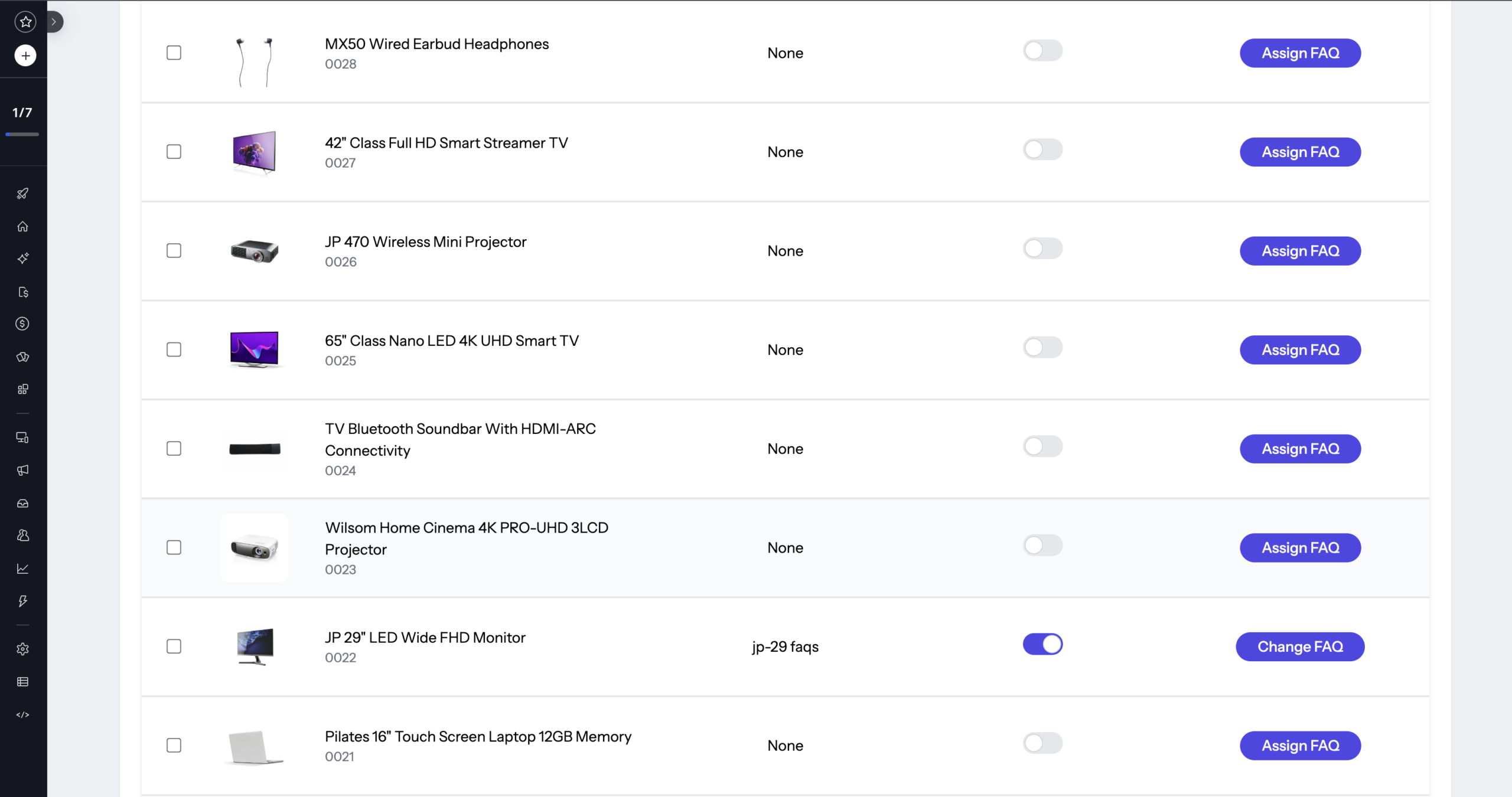
Go to the Assign FAQs page and toggle the switch next to Assigned FAQ to turn it on. This activates the FAQ section on all the product pages where you’ve assigned one.
If you ever need to temporarily hide the FAQ. For example, during a sale, a redesign, or for any other reason, simply toggle it off. Your assigned FAQs stay saved and ready to switch back on whenever you need them.
Step 5 — Preview Your Product Page
Before you go live, take a moment to preview everything.
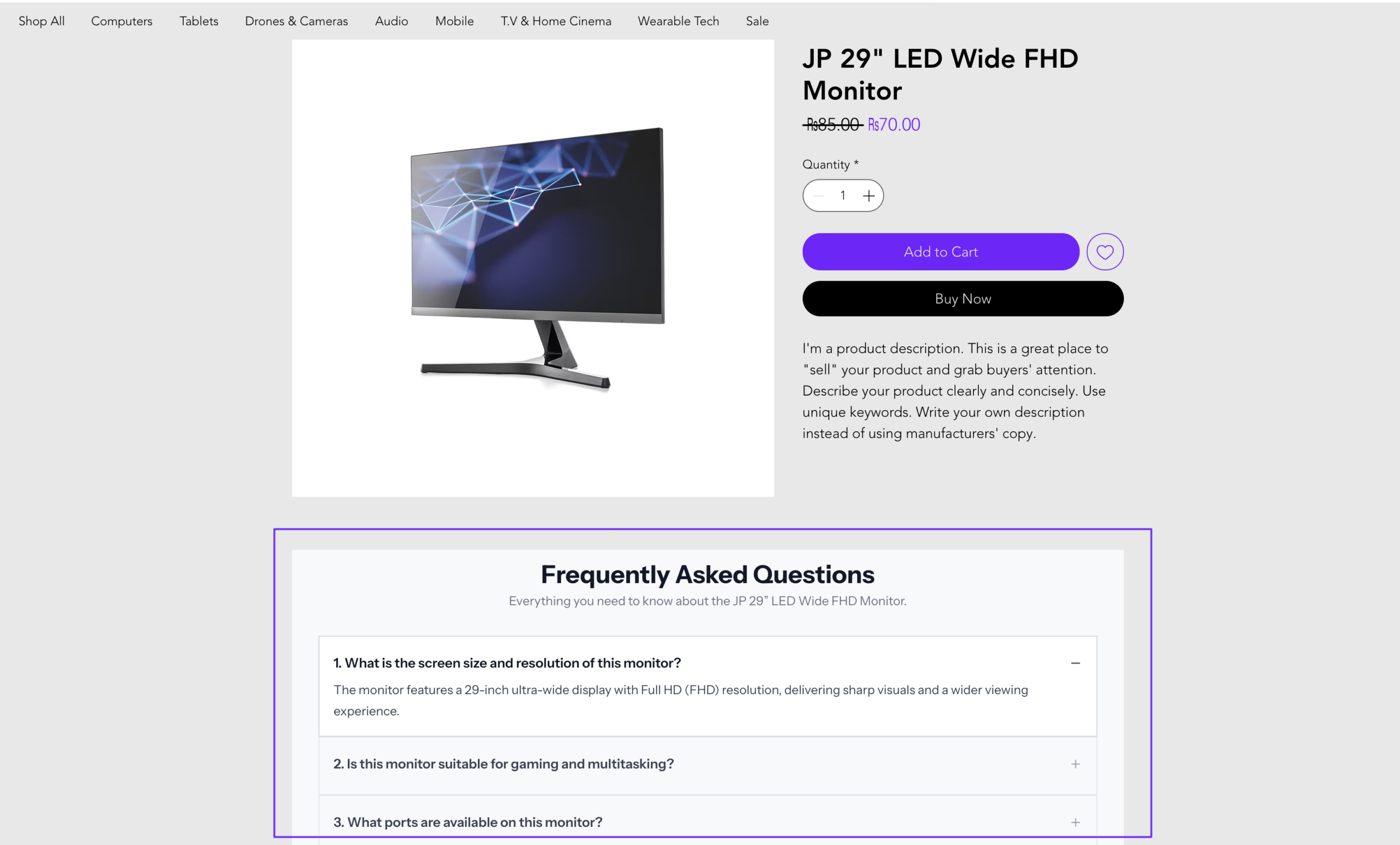
Click the Preview button to see a live preview of your product page with the FAQ section active. Check that your questions and answers are displayed correctly and that the styling looks exactly how you want it.
If everything looks good, publish your site and your FAQ section is now live for your customers.
Why It Matters
A well-placed FAQ section does more than answer questions, builds trust, reduces back-and-forth support messages, and gives hesitant shoppers the confidence they need to complete a purchase. Add FAQs in Product by Codeyard gives you a straightforward way to set all of this up without touching any code.
Give it a try and start turning questions into conversions.
Have questions about the app or need help getting set up? Drop a comment below or reach out to the Codeyard support team.
Share this